
GPU mining
GPU workers
Some drops are mined, not just minted: each mint needs a number that only lots of hashing finds. GPU workers do that hashing on machines you rent, and the app mints what they find from your wallet.
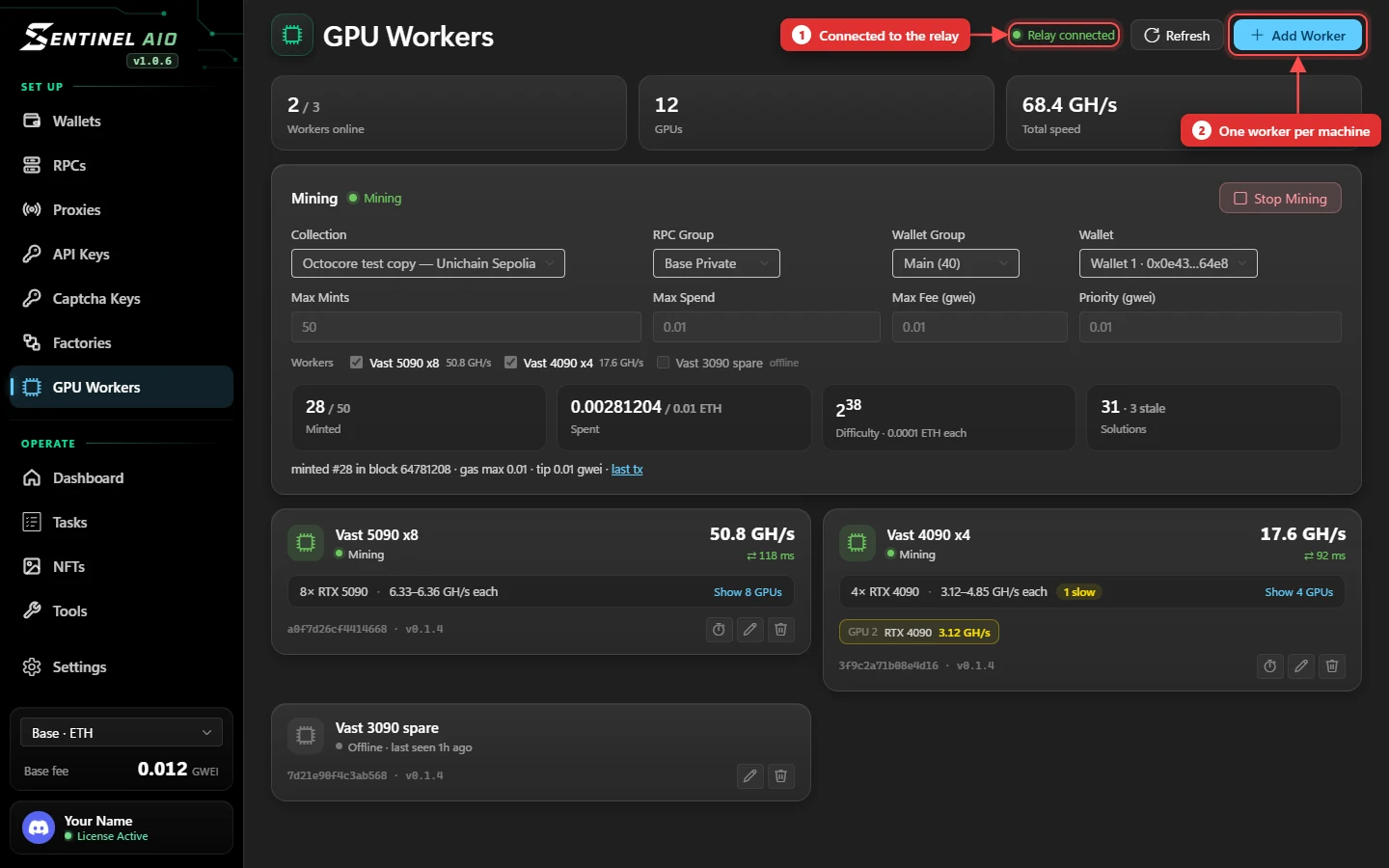
How it fits together
- A worker is one GPU machine running our worker image. It can have one GPU or many; it uses them all.
- Workers connect to the relay on sentinelaio.com, and so does the app. Relay connected at the top of the page means the app is on it.
- The app sends each worker its job and gets back what it finds. It checks every answer against the chain itself, then mints from your wallet.
Adding a worker
- Press Add Worker and name it, like Vast 5090 x8.
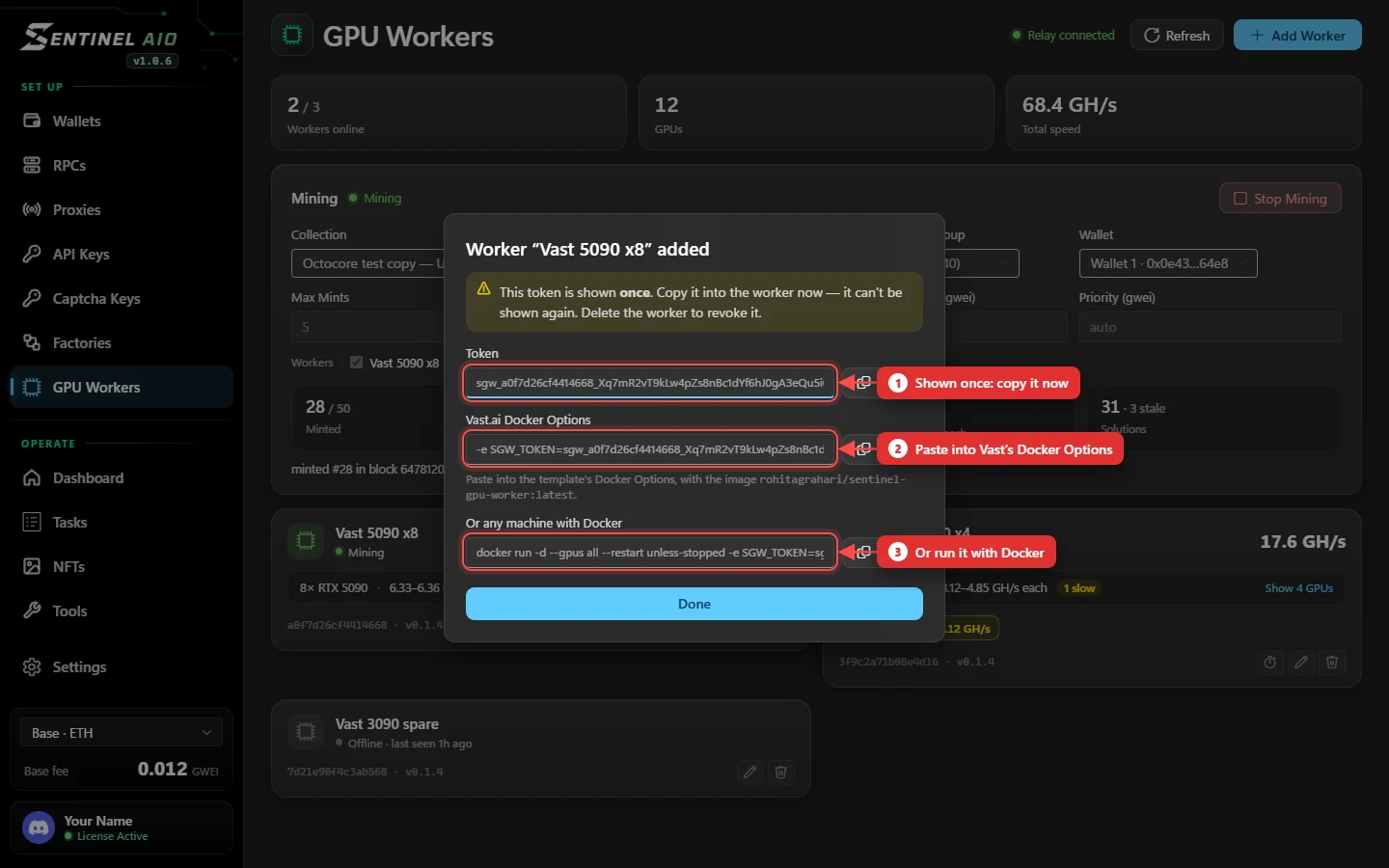
- The app shows the worker's token. Copy it now — it's shown once. Lost it? Delete the worker and add it again.
- Start the worker with that token (below). Within a few seconds its card turns Online.
Renting on Vast from the app
The quickest way: rent the machines from the GPU Workers page. Each one comes up as a worker by itself — no template, no token to paste.
- Press Rent on Vast. The first time, paste an API key from cloud.vast.ai → Keys. It's kept on this PC, encrypted, and only ever sent to Vast; Disconnect in the same window removes it.
- Pick what to rent: the GPU (or any), GPUs per machine (or 8 or more), a Max $/hr and the Reliability. Only machines that can run the worker are listed, cheapest first.
- Tick the machines you want — the button shows how many and what they cost an hour — and press it.
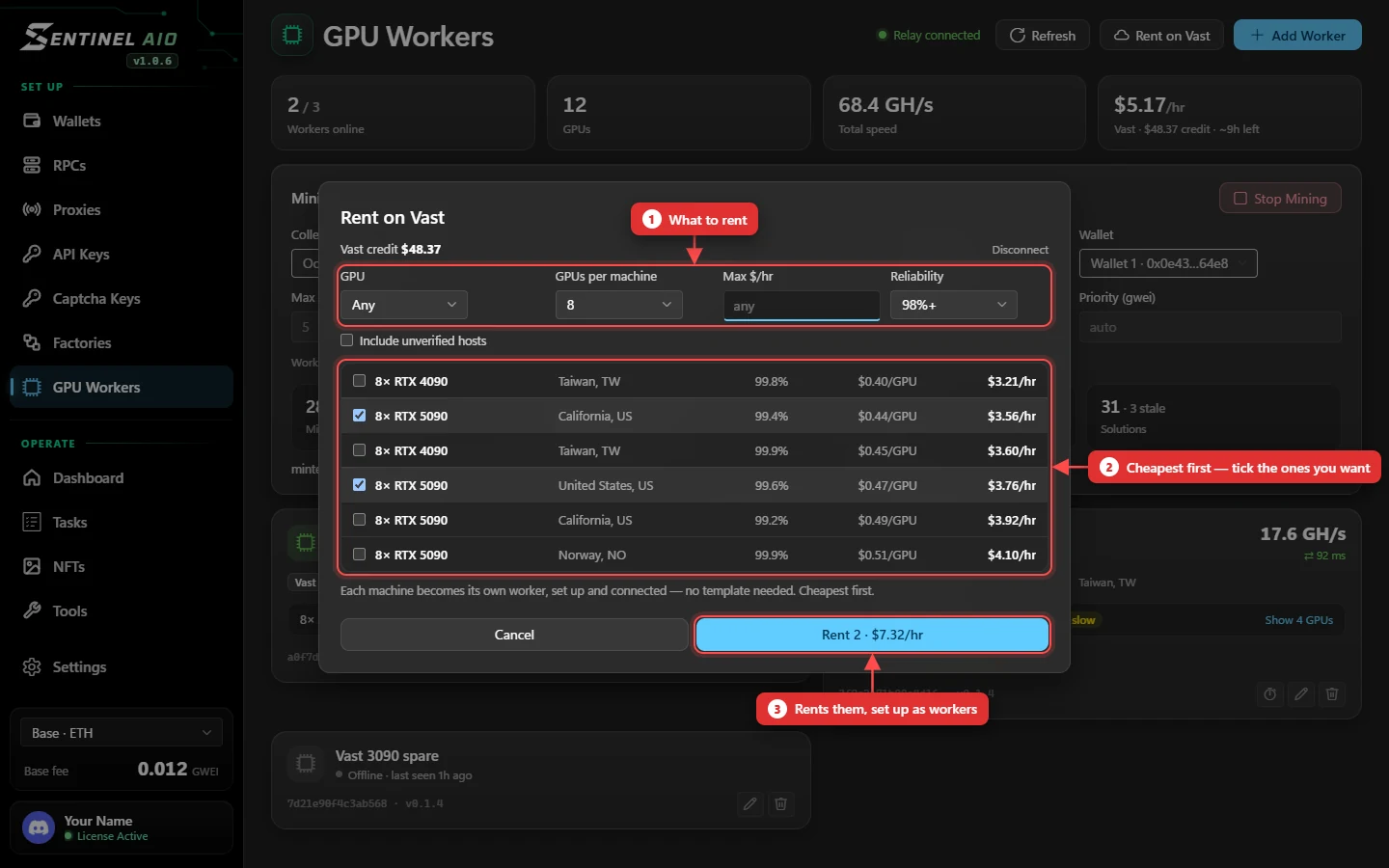
Each machine gets its own worker and token, the worker image, 32 GB of disk and the right launch mode, and starts at once. Its card shows up within a minute or two.
- Include unverified hosts also lists machines Vast hasn't verified yet — often cheaper, less proven, and tagged unverified. Hosts Vast has taken verification away from are never listed.
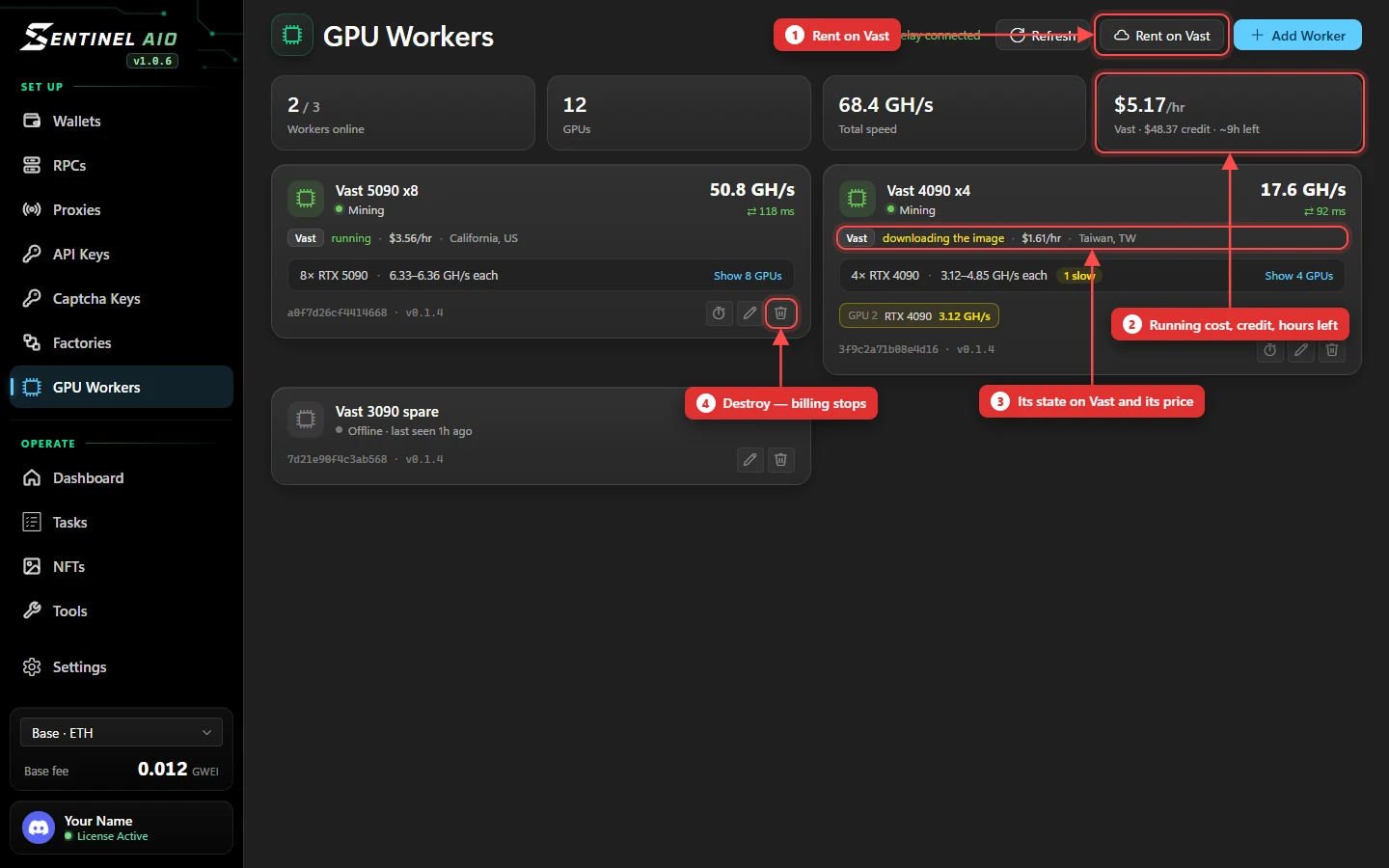
- A rented worker's card has a Vast line: starting, downloading the image, running — or stopped, which means destroy it and rent another. With its price and location.
- The last tile at the top adds up what your rented machines cost an hour, your Vast credit, and roughly how many hours it covers.
Setting up a Vast template by hand
Rather do it on Vast.ai yourself? Open Templates and make a new template. Fill it in from top to bottom:
- Template Name — anything, like SentinelAIO GPU Worker. The description is optional.
- Image Path:Tag —
rohitagrahari/sentinel-gpu-worker. Set Version Tag to the newest number,0.1.4, notlatest: a Vast host can keep an oldlatestcached and start that instead. - Docker Options — paste the line from the app's token window:
-e SGW_TOKEN=sgw_…. Vast copies it into Environment Variables asSGW_TOKEN; check the row is there. - Ports — none. The worker only connects out.
- Launch Mode — Docker ENTRYPOINT, with the arguments box empty. Leave the On-start Script empty too.
- Extra Filters —
cpu_arch in ['amd64'] cuda_max_good>=12.8 compute_cap>=750. That keeps the offers that can run it: an NVIDIA card from the RTX 20 series up to the RTX 50 series, with a driver new enough for CUDA 12.8. Stricter filters can hide the RTX 5090s. - Docker Repository Authentication — leave all three boxes empty. The image is public and needs no login.
- Container disk size — keep it at 32 GB.
- Set the template to Private, then Save. Pick an offer and rent it: the machine downloads the image, connects, and its card turns Online in the app.
Each machine needs its own worker and token. For a second machine, add another worker in the app, then copy the template and swap in the new Docker Options line.
Any other Linux machine with an NVIDIA GPU and Docker works too: the token window has the docker run line to paste.
Each worker's card
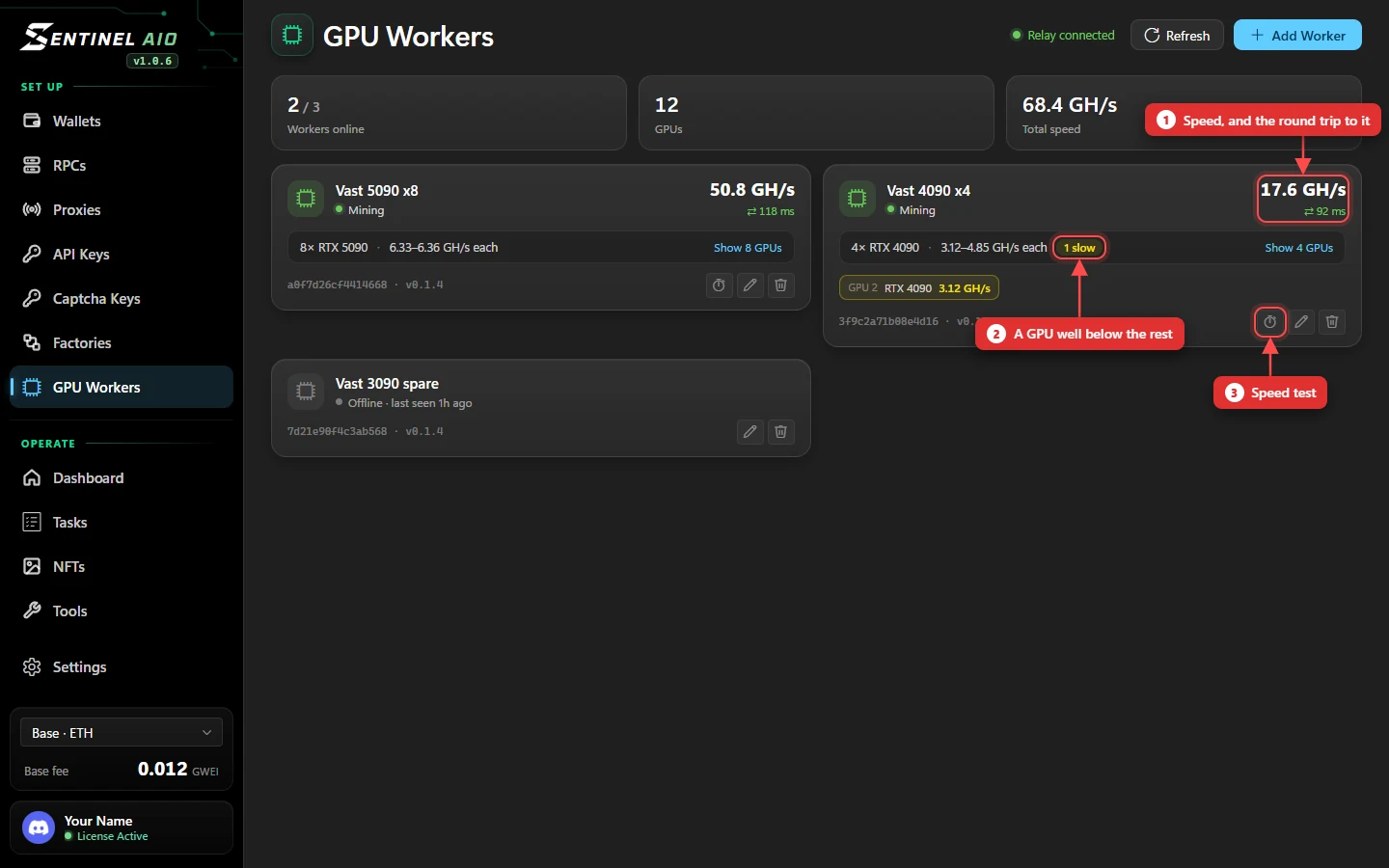
| Status | Online · idle, Mining, Speed test or Offline · last seen. |
|---|---|
| Speed | The whole machine's hashing speed, in MH/s or GH/s. |
| ⇄ ms | The full round trip: your PC → relay → worker → back. Green is under 150 ms, amber under 400 ms, red above. Hover it to see each leg. |
| GPUs | The cards, and the range each one hashes at. Show GPUs lists every card; a slow badge marks one well below the rest, and it's always shown. |
| Footer | The worker's ID and version, then Speed test (every GPU flat out for 25 seconds), Rename and Delete. Deleting a worker stops its token working at once. |
A worker that loses the relay keeps going for a minute, in case it's a blip, then idles its GPUs until it's back.
What they can mine
Workers hash Keccak-256 and SHA-256, which covers the proof-of-work collections out there. Which collections you can mine is set in the app — see Mining.