
Prepare
Wallets
Wallets live in groups. Tasks, funds and tools all pick wallets from these groups — make one group per purpose.
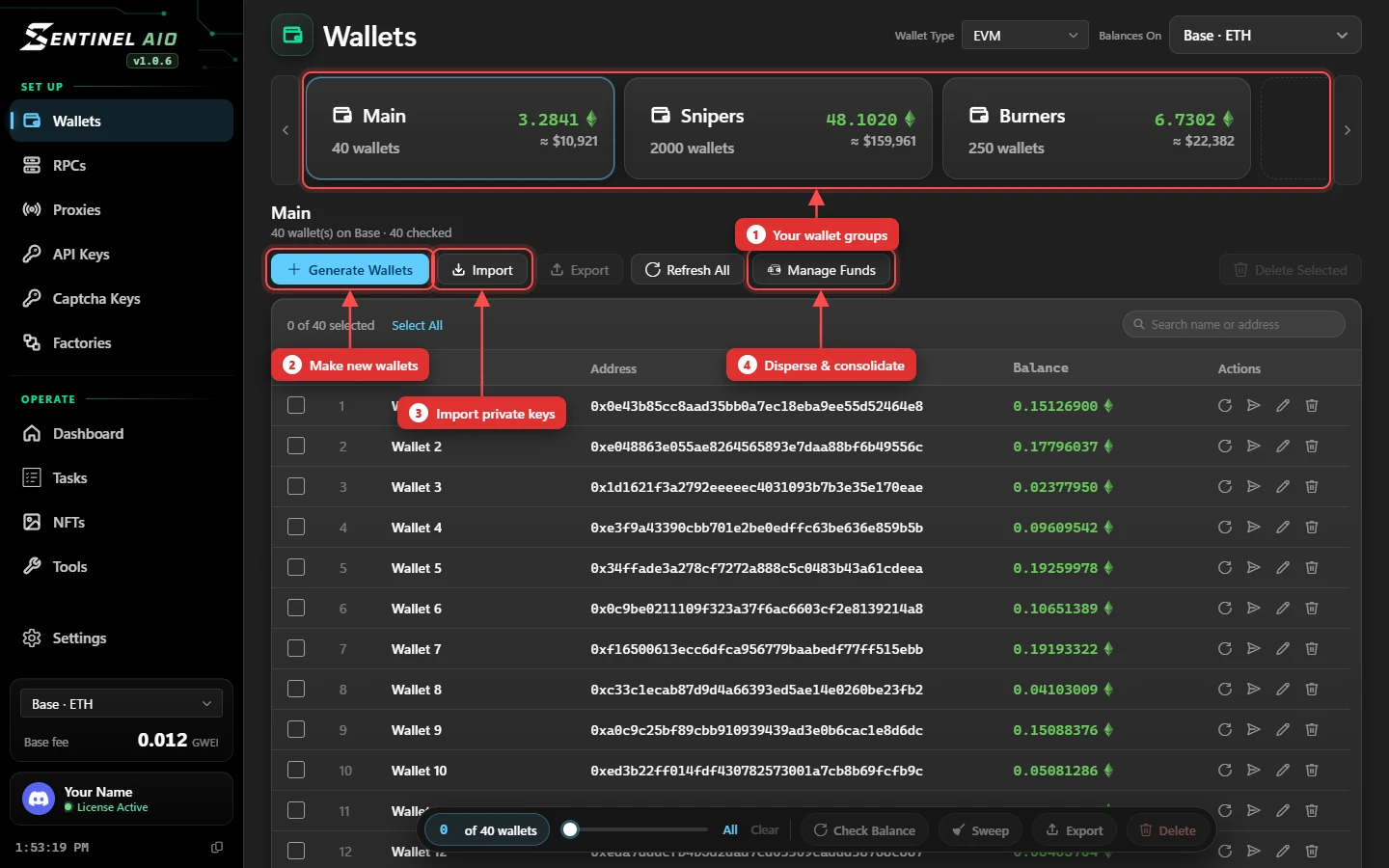
Groups
- Wallet Type at the top switches between EVM and SOL groups. A new group takes the type that's showing.
- New Wallet Group — the dashed card at the end of the strip.
- Each card shows its wallet count and total balance on the chain in Balances On.
- Rename or delete from the card; drag cards to reorder them.
Adding wallets
- Generate Wallets — as many fresh wallets as you ask for.
- Import — paste private keys, one per line. Solana groups take base58 keys, the kind Phantom and Solflare export.
- Export — the selected wallets' keys, to a file you choose.
Balances
Pick the chain in Balances On. Opening a group reads every balance in one go; Check All reads them again, and Check Balance in the bar at the bottom re-reads just the wallets you've ticked.
Selecting wallets
Tick rows, or use Select All. Once anything is ticked, the bar at the bottom appears: its slider selects the first N wallets in one drag, and it holds Check Balance, Sweep, Export and Delete for the selection.
Picking wallets elsewhere
Tasks, funds, NFTs and tools all choose wallets with the same picker. Open it, then:
- Tick a group to take all of it, or open it with + and tick single wallets.
- Type in a group's range box and press Enter:
The range replaces that group's ticks; an empty box clears them. Numbers are each wallet's place in its group.20the first 20 wallets 5-30wallets 5 to 30 1-10, 15wallets 1 to 10, and 15 - Search by wallet name, address or group to find one quickly.
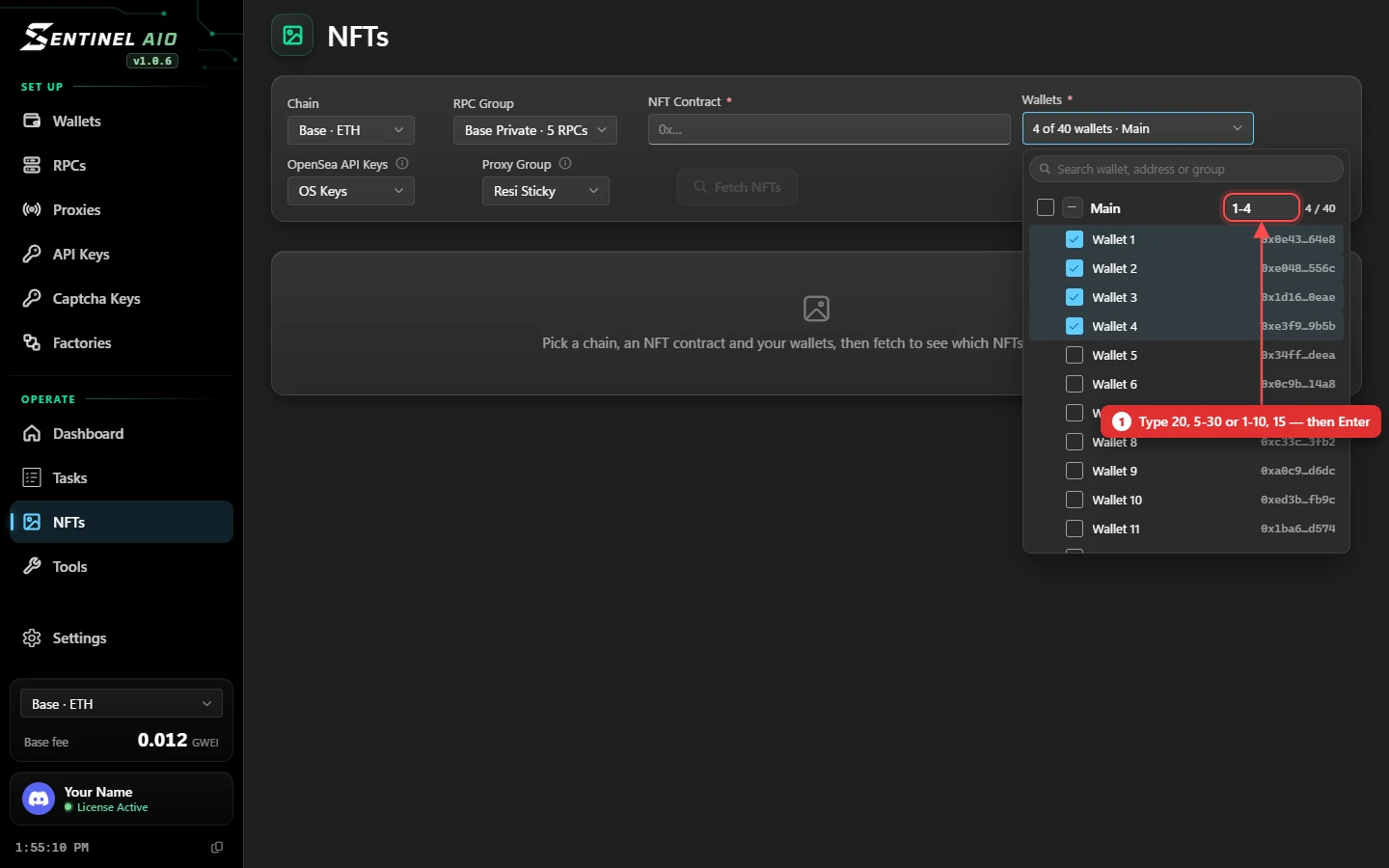
1-4 ticks the group's first four wallets.On each row
Refresh one balance, send from that wallet (a quick transfer with its own fee card), rename it, or remove it.
Moving funds between wallets
Manage Funds opens Disperse (one wallet funds many) and Consolidate (many wallets into one). See Manage funds.
data folder.